Using the torrent
Four steps
The torrent is all of The Vault+ in 11 folders, 1.5 TB in total. You do not have to download it all at once. Take the folders you want now and add more whenever you like.
- 01Get a torrent appqBittorrent or Transmission. Both are free, for Windows, macOS and Linux.
- 02Open the torrentOn Downloads, press Download torrent and open it with the app.
- 03Tick what you wantThe app lists every folder before anything downloads. Untick what you do not want. Nothing unticked is downloaded.
- 04Come back for moreThe torrent stays in the app. Tick more folders any time and it fetches only those. Leave what you have where the app put it.
Selected 116 GB of 1.5 TB
If the app starts downloading straight away, pause it, untick things in the torrent's file list (Content in qBittorrent, Files in Transmission) and carry on.
Torrent file or magnet link
Torrent file. A small file, about 2 MB, that you download and open with the app. It already holds the full list of folders, so the app shows it straight away.
Magnet link. A link instead of a file. Click it and the app opens. The app then fetches the folder list from other people sharing the torrent, which can take a minute, and carries on the same way.
Both get you exactly the same files. Use whichever is easier.
Where to store it
SSD / Hard drive / NAS
The whole torrent is 1.5 TB. Most laptops hold far less, so most people keep it on a drive of its own.
1.5 TB on
- A typical laptop, 512 GBDoes not fit. It needs three times the space.
- A 2 TB portable SSDFits, with 500 GB to spare
- An 8 TB hard driveFits five times over
Plug in and use
Finished drives. Plug into a USB-C or USB port and they appear like a folder.
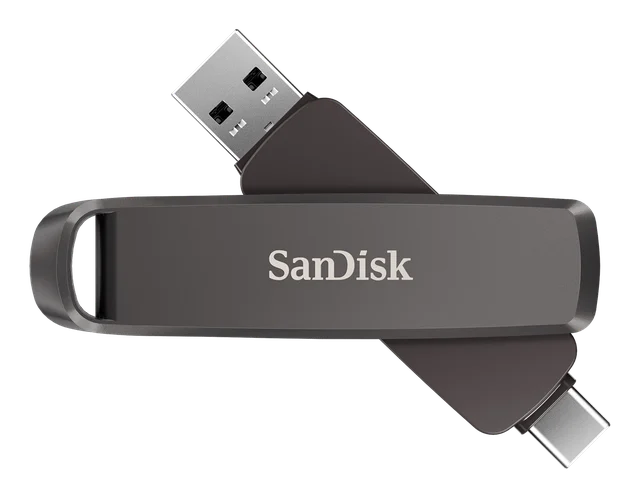
2 TB thumb drive
SanDisk Ultra Dual Drive Luxe, 2 TB
- Holds
- 2 TB
- Speed
- up to 400 MB/s
- Plugs
- USB-C and USB-A
The smallest and simplest. Goes on a keyring and plugs into phones as well as computers. Slower than an SSD for big copies.
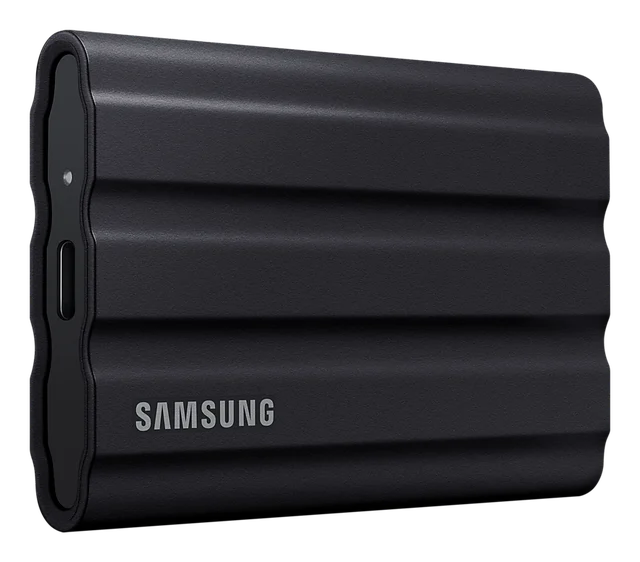
Best all-round
Portable SSD
Samsung T7 Shield, 2 TB
- Holds
- 1, 2 or 4 TB
- Speed
- up to 1,050 MB/s
- Plugs
- USB-C
The one most people want. Fast, silent and rubber-armoured against knocks. The 2 TB holds the whole collection with room to spare.
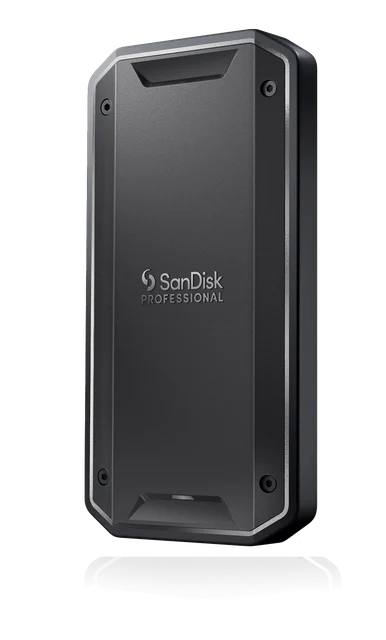
Fastest
Thunderbolt SSD
SanDisk Professional PRO-G40, 2 TB
- Holds
- 1, 2 or 4 TB
- Speed
- up to 3,000 MB/s
- Plugs
- Thunderbolt or USB-C
About three times faster again, on a Thunderbolt cable and port. Waterproof and crush-proof. Worth it if you move big batches often.
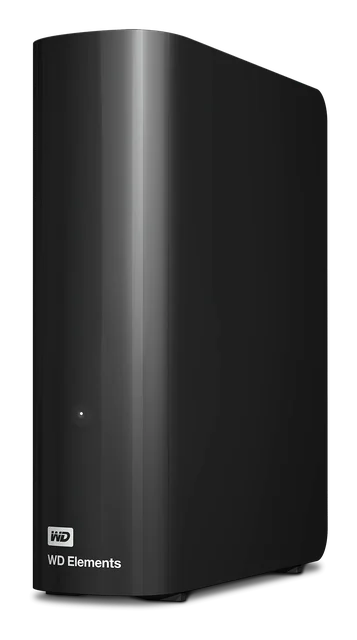
Backup
Desktop hard drive
WD Elements Desktop
- Holds
- 4 TB and up
- Speed
- about 200 MB/s
- Plugs
- USB, and the wall
The cheapest way to hold a lot. Sits on a desk with its own power lead. The right place for a second copy.
The parts inside computers and servers
Bare drives, the kind that go inside a computer or a server. Cheaper for the space and often faster, but each needs a box to live in. Put one in a box and it becomes one of the drives above, or put two in a NAS and you have your own small server.
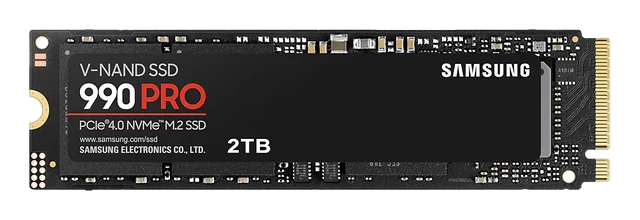
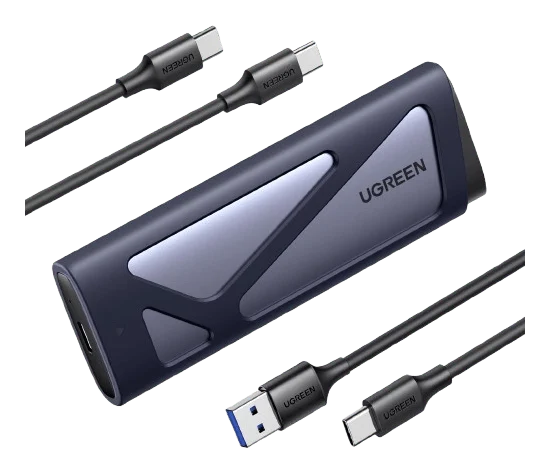
Build a pocket SSD
SSD stick and a case
The kind of SSD that goes inside laptops and servers. On its own it has no case and no plug. Put it in a case and you have a portable SSD you built yourself, and you can swap in a bigger stick later.
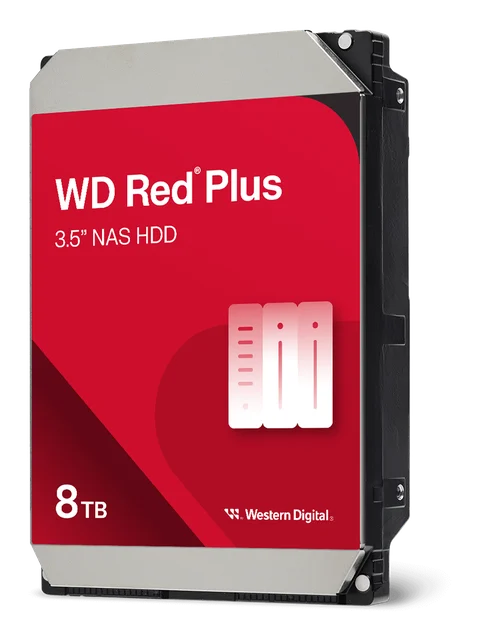
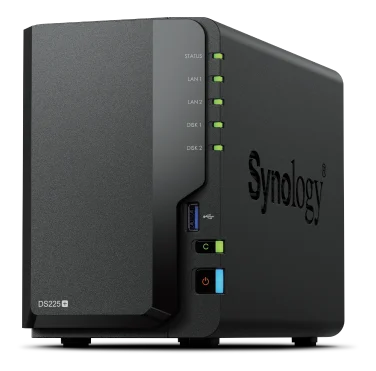
Your own server
A NAS and two drives
A NAS is a small computer that stays on at home and holds two or more drives. Set the drives to mirror each other and one can die without losing anything. Every phone and computer in the house can reach it over wifi.
SSDs and thumb drives keep data on memory chips. Plug them in now and then: left unplugged for years they can slowly lose data.
Hard drives spin. Cheapest for a lot of space and fine for a backup on a shelf, but slower, and a drop while running can break one.
Prefer the cloud? See cloud providers below. Prices move all the time, so the buttons open a search for that product in your country's Amazon.
Cables and speed
USB-C / Thunderbolt
USB-C cables all look the same, but they are not. The cable that came with a phone usually moves data at about 40 MB/s. A Thunderbolt cable moves it at 3,000 MB/s or more. Copying the whole collection takes about half a day on the first and minutes on the second.
The one that came with a phone
USB 2 cable
40 MB/s about 10 hours for 1.5 TB
Same plug, marked with a bolt
Thunderbolt cable
3,000 MB/s about 8 minutes for 1.5 TB, on a Thunderbolt drive
Each square is 40 MB moved every second.
How to tell them apart. Look for the lightning bolt on the plug, or 40 Gb/s, 80 Gb/s or USB4 printed on it or in the listing. No mark usually means a slow cable. Your computer's port and the drive need to be fast too.
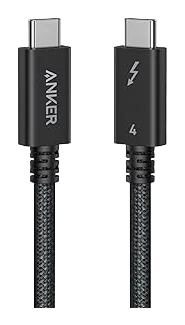
Budget
Thunderbolt 4
Anker Prime Thunderbolt 4 Cable, 1 m
- Rated
- 40 Gb/s
- Real copy speed
- about 3,000 MB/s
Faster than any portable SSD, thumb drive or hard drive can go. For most people this is the only cable they will ever need.
Price varies by shop: usually $26 to $46 in the US, about £31 in the UK.
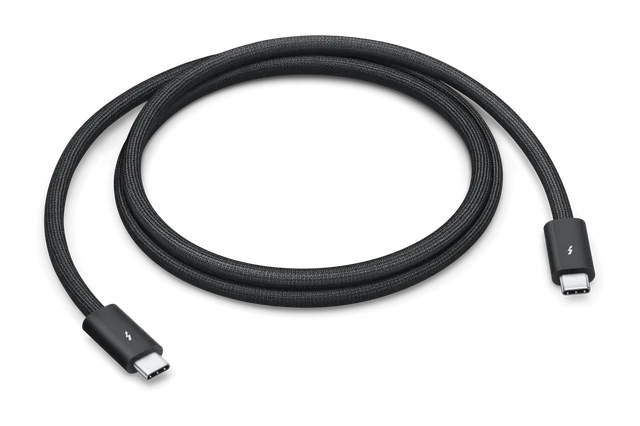
Premium
Thunderbolt 5
Apple Thunderbolt 5 (USB-C) Pro Cable, 1 m
- Rated
- 80 to 120 Gb/s
- Real copy speed
- about 6,000 MB/s
Twice the speed, for the newest Thunderbolt 5 drives and computers, and built to last for years. Worth it if this collection matters to you and you want one cable that never holds anything back.
Apple Store prices, checked 23 September 2026.
-
Phone charging cableUSB 2, most cables that come with a phone10 h 20 min40 MB/s
-
USB 10 Gb/s cableUSB 3.2 Gen 225 min1,000 MB/s
-
Thunderbolt 440 Gb/s, the budget pick24 mindrive is the limit
-
Thunderbolt 580 Gb/s, the premium pick24 mindrive is the limit
Downloading the torrent mostly runs at your internet speed, often 10 to 100 MB/s. A slow cable only holds you back if you save straight onto an external drive.
Copying and backing up is where the drive and cable decide everything. An SSD on a Thunderbolt cable moves the whole collection in well under an hour.
Copies
3-2-1
- 01
 The Vault+Download it here
 - 02Main copyYour computer or a drive you use
- 03BackupA second drive, kept at home
- 04Off-site copyCloud, or a drive kept somewhere else
A common approach is 3-2-1: three copies, on two kinds of storage, one of them somewhere else.
Cloud providers
No drive needed
No hard drive? Download The Vault+ straight into cloud storage instead. The whole torrent is 1.5 TB, so pick a plan with room for what you want.
- 01Get the appInstall your cloud’s app on your computer. It adds a folder that syncs to your cloud.
- 02Download into itIn the torrent app, set that folder as the download location.
- 03Set it to online onlyFiles upload as they finish, then stop taking room on your computer.
- 04Go in batchesTick a few folders at a time. Leave the computer on until they upload.
- 01 · Hypno Audio 🎧In the cloud
- 02 · Locktober 🔒In the cloud
- 03 · The Capsule Collection (2025) 💊Uploading
- 04 · 2026 Releases 🗓Downloading
- 05 · Video Library 📼Next batch
Best for this
Encrypted: only you can see your files
- MEGALarge plans and a good desktop app.
- Proton DriveFrom the makers of Proton Mail.
- FilenLow prices for the space.
- pCloudPay once for lifetime storage. Add pCloud Encryption to keep it private.
Bulk storage
Cheapest for all 1.5 TB, more setting up
- Backblaze B2Pay only for what you store.
- Hetzner Storage BoxA fixed monthly price for a lot of space.
- No sync folder. Download first, then upload with rclone or Cyberduck.
Mainstream
Encrypt first
- Google Drive · iCloud · OneDrive · DropboxThey can scan what you store and close accounts over adult material. Lock your files with Cryptomator before they go up.
Checked September 2026. Prices, limits and terms change.
What is in each download
- Audio comes as a zip. The M4A files carry their title, artist, album, tags and cover inside them.
- Video comes as the original file, most of them WebM. VLC plays them on any system. The description and tags come in a separate info folder.
- README.txt and info.json hold the description and tags. Goonbate.html opens Goonbate.
- SHA256SUMS.txt lists a checksum for every file. It relies on the file names staying as they are.
The Vault+/
  The Vault+ Catalogue/
  Audio/
    Release title/
      01 - Track.m4a
      cover.jpg
      README.txt
      info.json
      SHA256SUMS.txt
  Video/
    Video title.webm
    Video title/        info folder
Checking a file
A checksum is a fingerprint of a file. If the one you work out matches the one listed, the file is complete and undamaged.
fe36afda 6e849832 7cb5fc22 7a1cabb4 56a4e4fd 6348f517 14e291d8 32a446dcfe36afda 6e849832 7cb5fc22 7a1cabb4 56a4e4fd 6348f517 14e291d8 32a446dcMatch. Complete and undamaged.fe36afda 6e849832 7cb5f399 7a1cabb4 56a4e4fd da48f517 14e291d8 32a446dcDifferent. Download that file again.To work one out, open Terminal (macOS, Linux) or Command Prompt (Windows), type the start of the line below, then drag the file onto the window and it fills in the name. Press Enter.
macOS and Linuxshasum -a 256 "file name"
Windowscertutil -hashfile "file name" SHA256